Global - Tables
Template for Tables
Go to Global and select Tables in the modules menu.
Global Table templates are grouped into Table groups. A Table group is a collection of table templates that can be easily added to one or more products.
Create Table group
Click on "New" to ctreate a table new group or select an already created in the drop down list.

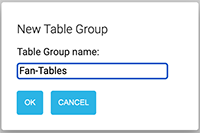
Type a name for the new table group and click OK or hit Enter to create the table group.
Add tables
Add tables to the table group by clicking on the + button. Click several times if you want to add more tables.
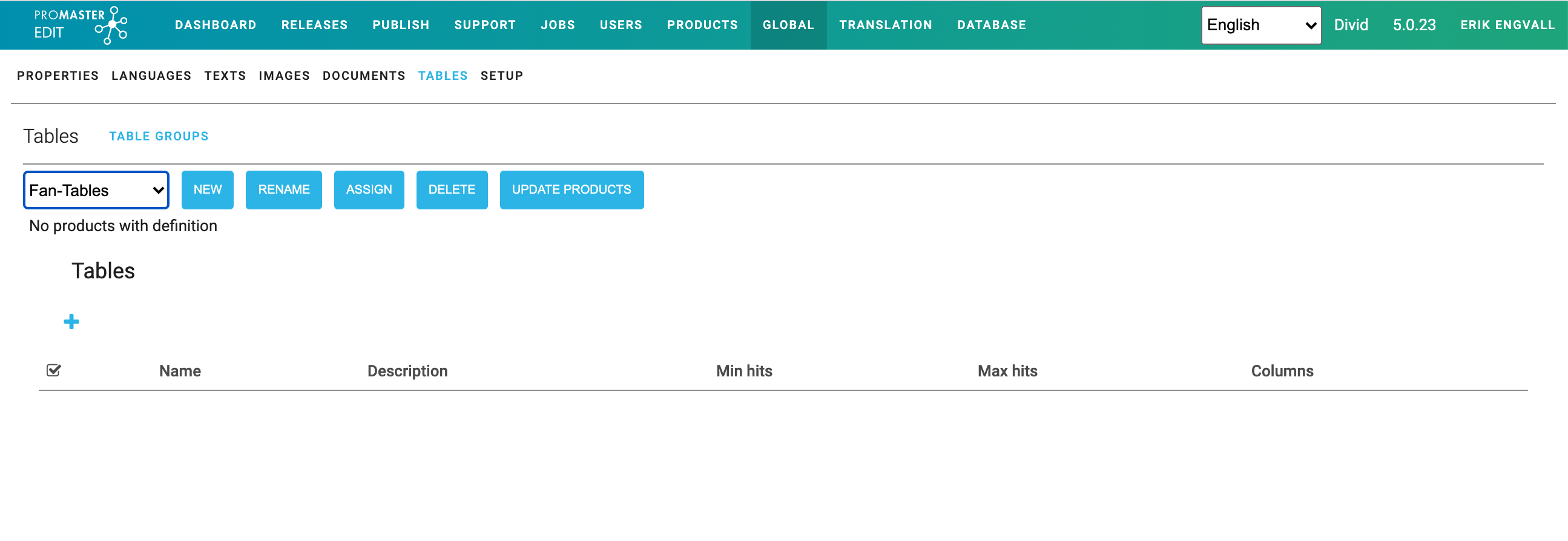
Click in the name column and name the table. It is also possible to add a description and to specify Min hits and Max hits. This is the number of rows that you want from the table when quering it. If you define max and min hits it is later possible to validate the data in the table and find errors.
Add/Edit columns
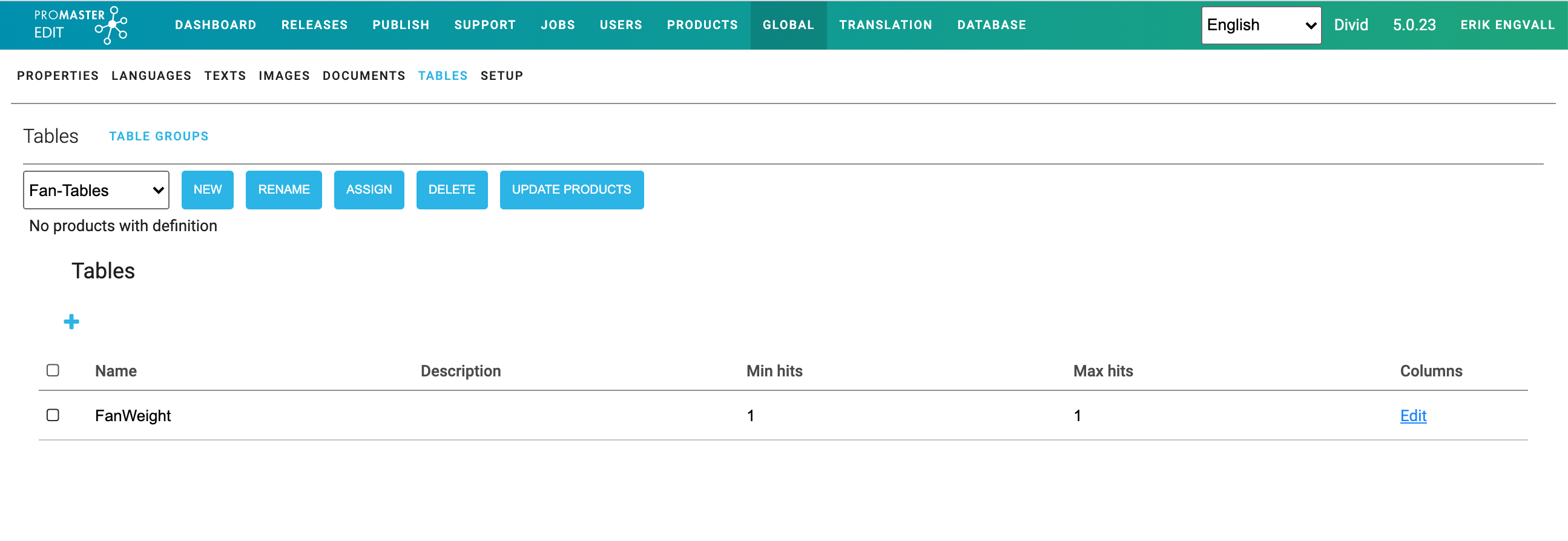
Click on Edit to add/edit columns for the table. Click on the + button to add columns. For each column click on the name and specify the column name and select what type of data to store in the column.
Column types
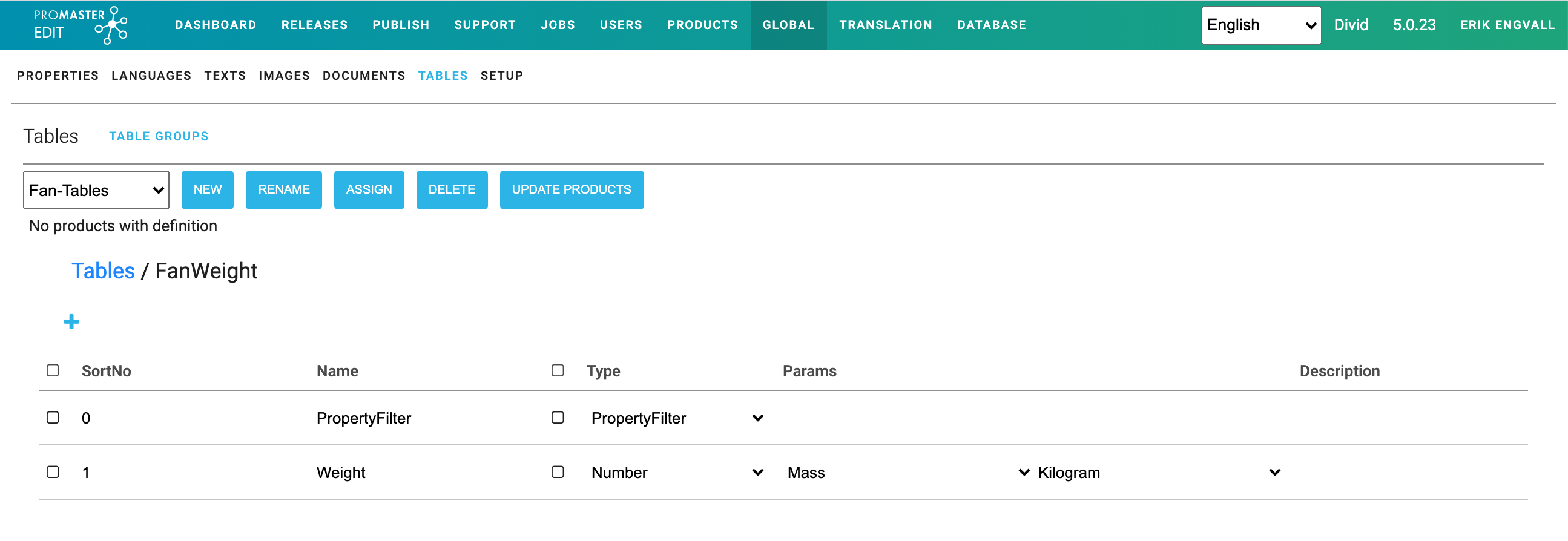
Table below shows available column types that can be defined in a table.
| Column type | Comment |
|---|---|
| Text | Standard text field for shorter texts |
| LongText | Longer texts for product descriptions etc. |
| PropertyFilter | For Promaster-spcific PropertyFilters. Enables filtering on the entered PropertyFilter |
| PropertyValues | For filtering on specific Property values, ex: width=1200 if there is a property width that has a value that is 1200. |
| Blob | Binary large objects - enables enables uploading of big files. |
| FixedDiscrete | Creates a selector of values that are entered in params. Example in params: Value1,Value2,Value3 will create a drop down selector with three choices. |
| FixedMultiDiscrete | Creates a selector of values that are entered in params. Example in params: Value1,Value2,Value3 will create a drop down selector with three choices from where it is possible to choose more than one option |
| Json | Json formatted data. |
| DatabaseKey | Reference a Promaster database |
| DynamicDiscrete | |
| Number | Defines a number. Amount and Unit is selected in Params. |
| Product | Creates a drop-down-selector for available products within the current Database/Tenant. |
| Property | Creates a drop-down-selector for available Proporties within current product. |
| Quantity | Creates a drop-down-selector for all available amounts/quantities. |
| Unit | Creates a drop-down-selector for all available units. |
| TextId | Creates a drop-down-selector for available texts in the Texts module for the current product. |
Update products
When a table in a Table Group is changed the changes needs to be pushed out to all products that are using that specific Table Group. Click on the button "Update Products" to update all products that are using the table. When there are changes that has not been updated to all products it is visible as a warning as in the image below; 0 / 2 products up to date. If you click on "products" a list is shown with the products that use the specific table group and will be updated.
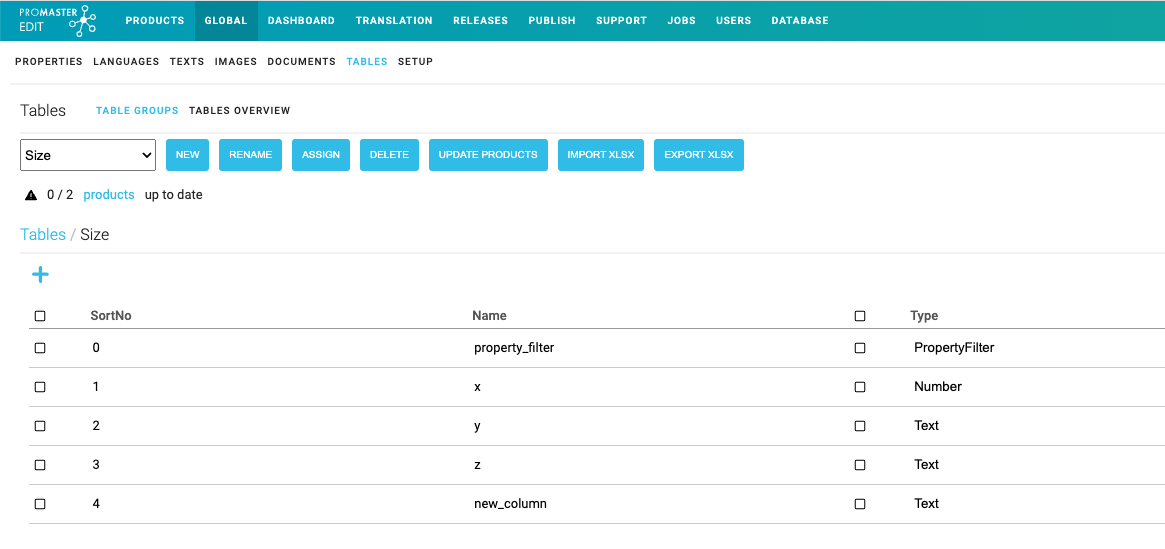
If the button "Update Products" isn't clicked the user will get a warning of this on each product that uses the table group. Se image below.
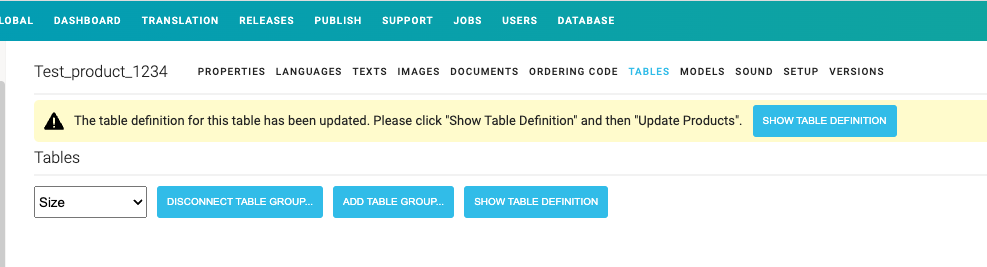
To correct the issue and get rid of the warning the table group needs to update all products connected to it. Click on the button "Show Table Definition" to go to the table group that needs to be updated and click on "Update Products" as described above.