Modules Overview
Each product can have a set of modules active. Which modules that should be active is specified under Setup.
Edit values
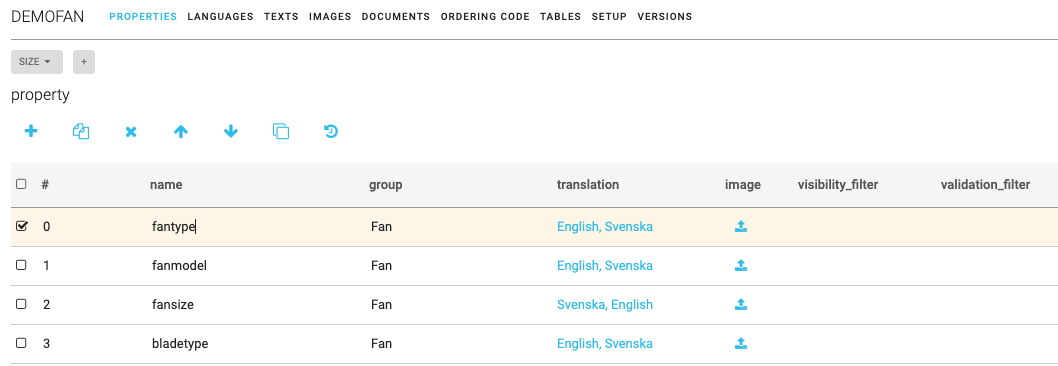
To edit or add a value on a row click on the cell in the table and start typing. In the image below the cell with the text "fantype" is selected and possible to edit.
The cells aren't visible but when hoovering over a cell the mousepointer changes to the edit text appearence and it is possible to click and select the cell. See image below where the cell on row 11 is selected for edit.

Toolbar
The toolbar on each module can contain the following icons:

Some of the icons are only visible if a product or line in a table is selected or if a single cell is selected. Not all modules have all icons but the meaning of all icons are the same regardless of module.
 Add
Adds a new property, a new image or a new line in a table depending on which module is used.
 Export to Excel file
Click here to export the list to an Excel spreadsheet file.
 Import from Excel file
Click here to import a list back from an Excel spreadsheet file. To be sure to get it right it is best to first export an Excel file with the same table structure, edit that file, and then import it.
 Copy rows from other product
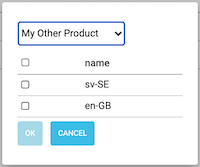
 is the easiest way to setup a module with proprties/rows used in another product. Click on the icon and select the product to copy from, then select the lines to copy. Check the box in the top row to copy all.
 Delete
 the selected property or row. It is possible to select multiple rows and delete.
 Move up
Select a property or row and click on "Move up" to reorder and move the property or row up in the sort order.
 Move down
Select a property or row and click on "Move down" to reorder and move the property or row down in the sort order.
 Duplicate
Select a property or row and click on "Duplicate" to duplicate the selected property or row. Give the dupliacted property or row a new name.
 Show history for cell
Place the marker in a cell on a row and click on "Show hostory for cell" to view the change history for that cell.
Search - Filter

The search field in the top right corner of all modules makes it possible to search for specific content like an ordinary search. Just type the search term and the search starts directly.
In all modules, except Properties, it is also possible to filter out content based on specific property filters.
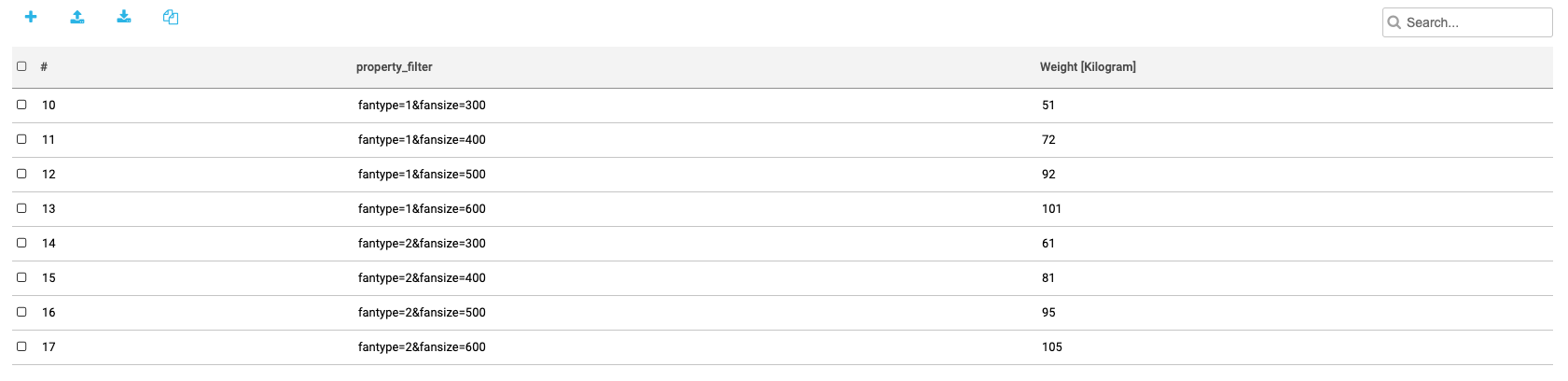
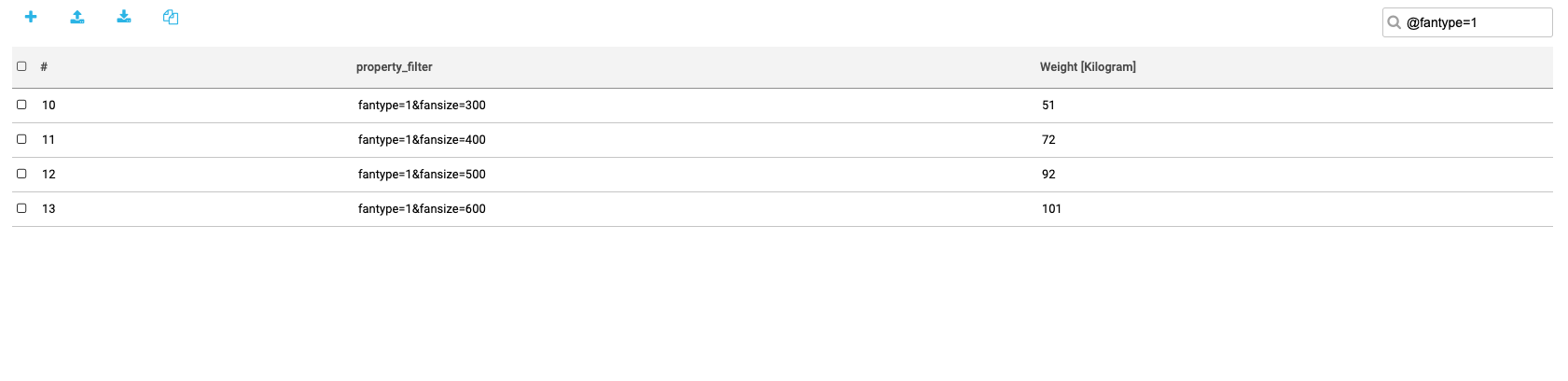
To filter out content based on a property filter you just add an @ sign before the PropertyFilter. For example @fansize=1 will filter out all rows that has a property filter of fantype=1. See pictures below for before and after the filter is applied.
It is also possible to search for more than one PropertyFilter. The PropertyFilters are separated with semicolon. Ex: @fantype=1;fansize=300