Properties
Properties And Property Filters
Promaster is built around the concept of Properties and PropertyFilters. These concepts are used throughout Promaster and this guide so a deep understanding of these concepts is required before any other parts of Promaster can be understood.
Properties
A property is an attribute that describes some characteristics for a product. Simple examples of a property are width, height and color.
Adding properties to a product is done using the properties module.
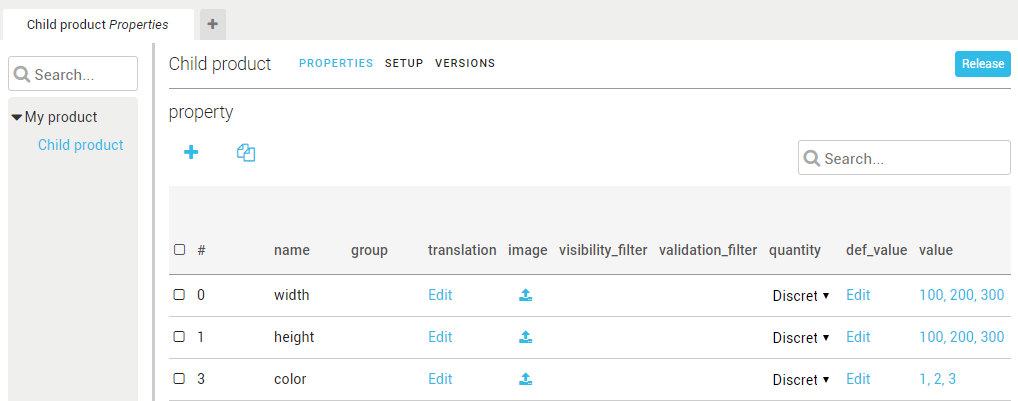
- name: The name of the property
- group: Can be used to group properties together, for example width and height can belong to the group size.
- translation: Used to translate the name of the property to other languages.
- visibility_filter: Allows the user do define when the property should be visible (se section PropertyFilter)
- validation_filter: Allows the user to define valid selections (se section PropertyFilter)
- quantity: Used to describe what kind of property we want to define: An example is discrete that defines a finite set of integer values that are allowed to be selected, for example color: 1, 2, 3 where 1 will be red, 2 will be blue, and 3 will be green. Se Amounts and Units below for a list of supported quantities.
- def_value: the default value for the property.
- value: If property is defined with the quantity discrete this is where you enter the possible values, clicking Edit in the property table opens a new table for that property where you can enter the possible values. The values for a property are also known as property values
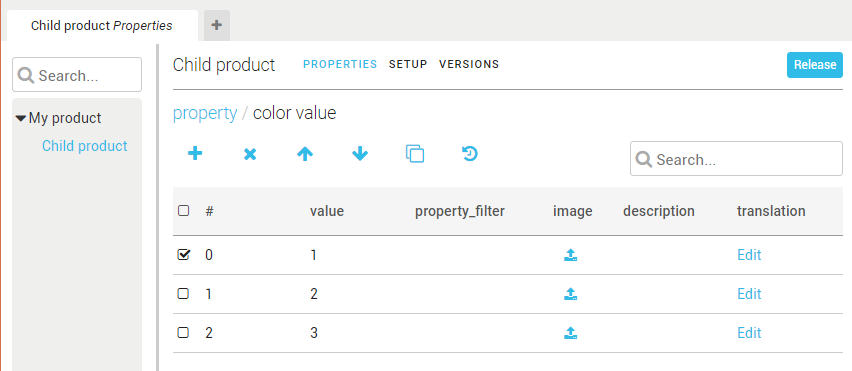
In the example above we have defined a property color that is a discrete quantity with the possible values red=1, green=2 blue=3. The system will use integers to keep track of the values but the text added in the translation will be displayed in external applications.

PropertyFilters
It is important to understand that Promaster has no knowledge of what the property names actually mean. For example, Promaster does not know that the property “height” is related to the size of the product. To Promaster, selected property values are merely name/value pairs where the name has no special meaning.
PropertyFilters are a mechanism to set up rules for the properties and their values. A PropertyFilter describes what combinations of property values are valid.
For example, if a product is defined with the properties width, height and color. Where the possible values for the Properties are the following width = 100, 200, 300 height = 100, 200, 300 color= 1, 2, 3
This means that the product we have described can be configured in 27 different ways, (3 widths) X (3 heights) X (3 colors) = 27 combinations.
Currently all combinations are valid. But if we want to put some restrictions on what the user can select we can use a PropertyFilter.
If the product does not come in color 3(Blue) for the height 300 we can create a PropertyFilter on the value 3 for the property color to prevent that selection.
The rule we want is that when the user selects the width 300, only color 1 and 2 are valid to select. If he selects another width that is not 300 we want to allow all colors.
The property filter will be added to the value 3 for property color according to the image below:
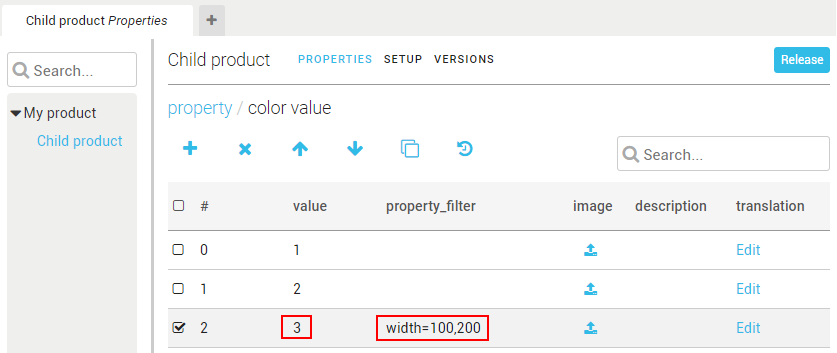
This means that if the user wants to select the color 3, width must be 100 or 200. It can also be written as width!=300 which means for all widths except 300 selecting 3(Blue) is ok.
An external application can use these rules to setup selections that show the user what is allowed.
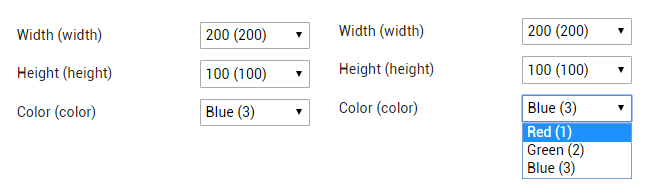
Here the selected width is 300, and because our filter says that 3(Blue) is only available for width 100 and 200 it is displayed in red. If we open the list we can see that 1(Red) and (2)Green are ok to select with the current settings but 3(Blue) is not.
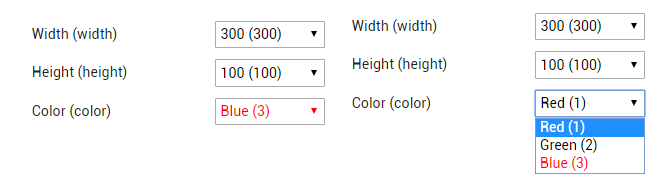
If we change the width to 200 we can select all colors and no values in the list are displayed in red color:
PropertyFilter Examples
You can combine multiple properties in a PropertyFilter by using the & character. For example if we have a color that is only available for a specific width and height we can create the filter: width=300&height=300
This means that the value that has this PropertyFilter is only valid if width is selected to 300 and height is selected to 300. Otherwise it is not allowed.
Using Properties and PropertyFilters is the way to define products and their characteristics in Promaster. The properties define possible attributes, the values for each property define possible values and the PropertyFilters define the rules for how the different PropertyValues are allowed to be combined.
More PropertyFilter examples
width=300&height!=200, if width is set to 300 and height is not 200 the selection is valid.
width=300,400, if width is set to 300 or 400 the selection is valid
(width=300&height=300)|(width=300&height=200), if width=300 and height=300 or if width=300 and height=200 the value is valid.
width=100~200 if width is between 100 and 200 inclusive the value is valid.
##" PropertyFilter Syntax
Here is a more formal definition of the PropertyFilter syntax.
Comparison operators
General syntax for comparison expression:
{property_name}{comparsion_operator}{property_value}
| Operator | Description | Example |
|---|---|---|
| = | Equals | size=11 |
| > | Greater than | size>10 |
| < | Less than | size<12 |
| != | Not Equals | size!=10 |
Logical operators
Multiple comparison expressions can be combined using logical operators:
{comparision_expression}{logical_operator}{comparision_expression} …
List of all logical operators:
| Operator | Description | Example |
|---|---|---|
| & | And | size=11&type=2 |
| | | Or | size=11|type=2 |
Syntax for non-discrete property value literals:
{Value}:{UnitOfMeasure}
Example of non-discrete property value literal:
11.54:Celsius
Shorthand syntax for multiple values
property=1,2,3
is the same as
property=1|property=2|property=3
Both filters above will be valid when property is either 1, 2, or 3.
Shorthand syntax for value intervals
property=100~500
is the same as
property>99&property<501
Both filters above will be valid when property has a value between 100 and 500 (inclusive of 100 and 500).
Order of evaluation
a=1|b=2&c=3
is evaluated as
a=1|(b=2&c=3)
To override this priority order, use parentheses:
(a=1|b=2)&c=3
See Amounts and units...