Setup
Product Module Setup
Selecting a product in the tree opens the modules view to the right. Different modules are used to edit different kinds of data for the product. In the image below the setup module is selected. It allows the user to configure settings for the selected product.
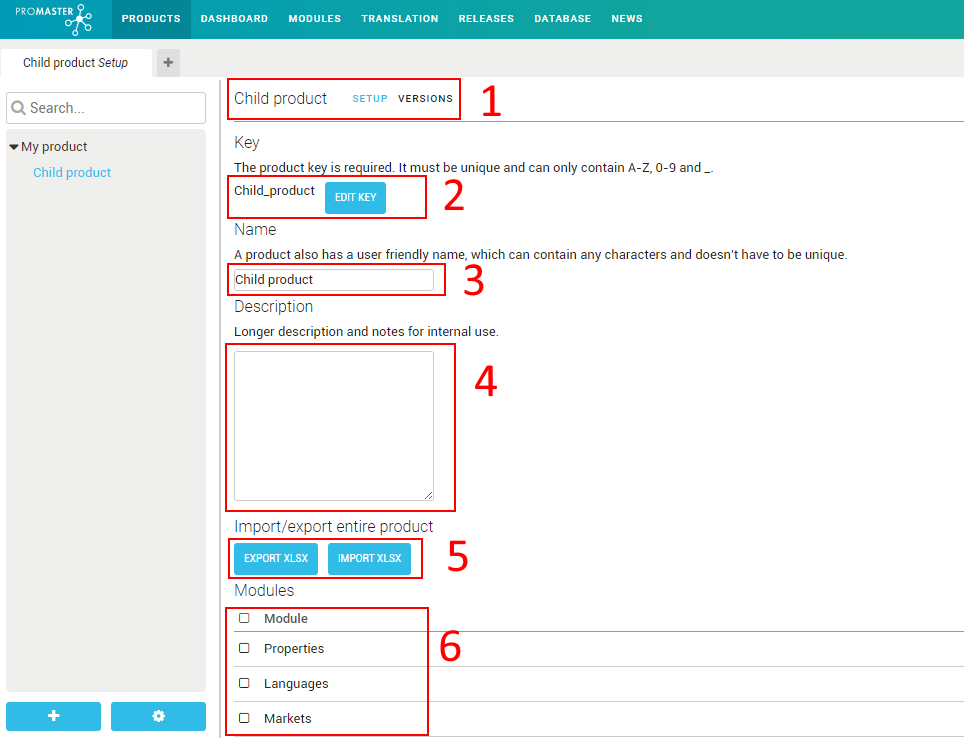
- A menu with all the available modules for the product. Clicking on an item opens the module.
- Every product must have a unique key. The key should be fixed throughout the products lifetime, it can however be changed by clicking the edit key button.
- A user friendly name for the product that can be changed at will.
- A textbox where you can enter a description for the product.
- Functions to import/export the entire product with its data to Excel. The same excel can be edited and then imported using the import button.
- Allows the user to set what modules should be available for the product. Checking an item here displays the module in the module menu 1.
Export/Import
Export
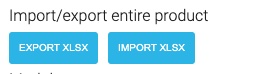
Click on "EXPORT XLSX" to save a copy of the whole product to an Excel-file.
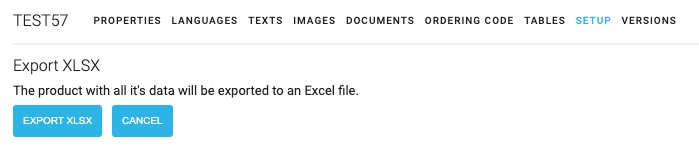
Click on "EXPORT XLSX" to save the excel file to your computer. The file is downloaded to your Dowloads folder.
Click on "CANCEL" to go back to the Setup-page without exporting.
Import
Go to the product where you want to import the newly exported product or create a new product. Go to the Setup tab and click on "IMPORT XLSX".
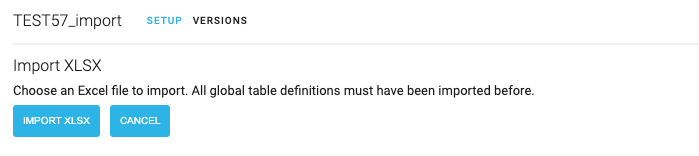
If you are importing the product into another database than the exported product you need to ensure that all global table definitions are exported and imported first. This is done under "Global" - "Tables".
Click "IMPORT XLSX" and select the file to import. A list of the modules are shown. Select all or just some if you don't want to import all.
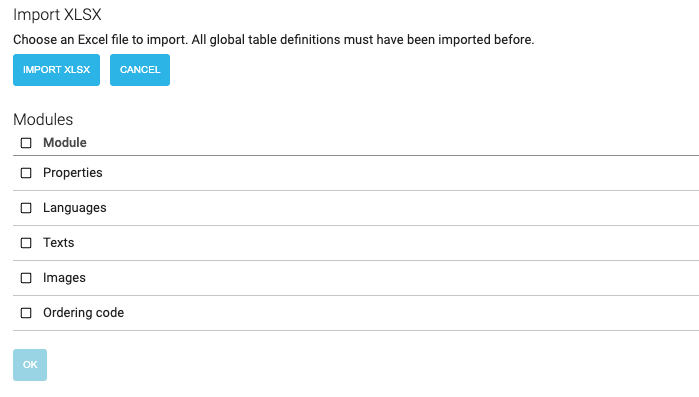
Click "OK".
A job is started that handles the import. The status of the job is shown in the lower right corner of Promaster. You can also view more about the Jobs under the area "JOBS". If everything went ok the product is now available and can be selected in the menu.