The Release Area
Introduction
Promaster comes with built in version management. This means that all changes to products can be undone and that the full history of what has been changed for all products can be seen. Version management is implemented by using releases of products and of the system. A release allows external applications to access data from Promaster in specific versions.
Release Types
There are two types of releases in Promaster.
Product Release
A product release is a release of a specific product. It is used to manage versions of one product. You can create a release of a product when you want to have a label/tag on a particular version of it. Often a product release is created when you have added/changed enough data to test the product or a point has been reached where you want be label the current changes so you can quickly find that version of the product.
System Release
A system release is when you group multiple product releases into one big system release that you want outside applications to access.
A system release combines different product releases together into one big release.
Creating Releases
Creating A Product Release
Each product in Promaster is isolated. A change to one product does not affect any other product. The product release function means that one product can exist in many versions with different content.
- Select an existing or add a new product to Promaster
- Add/edit data to for product
- When you want to release the product or come to a point that you want to be able to go back to, create a release of it by clicking the release button

- Enter a message that will help you remember what the release was about, for example “added more sound data” and click ok
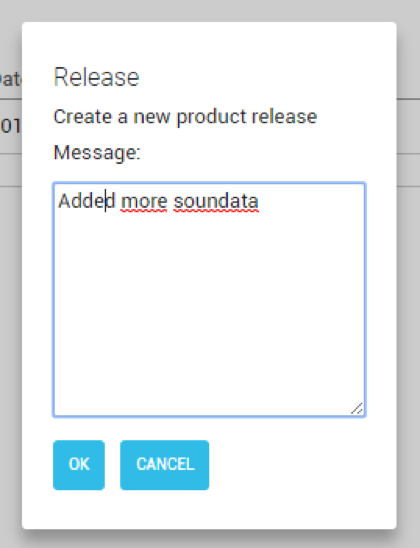
- A new release is created. This release can never be changed. If you do more changes to the product they will be added to the product but they will not change version 1. Next time you release the product (version2) all changes that happened after version 1 will be included.
Product Versions
If you click the versions tab you can see all the existing versions of your product. You can also view the intermediate versions that display what changes are included in that particular version.
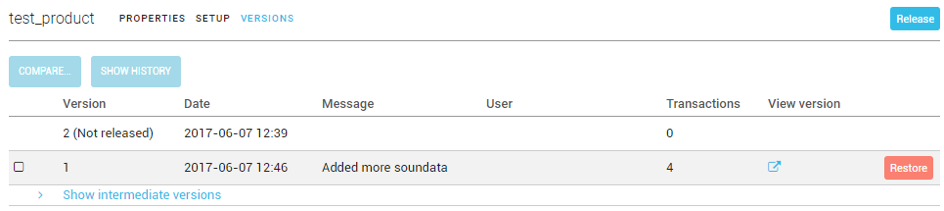
In this case the product has a version 1 that is fixed and a version 2 that we are currently working on that has not been released. If we create a new release of the product it will look like this:
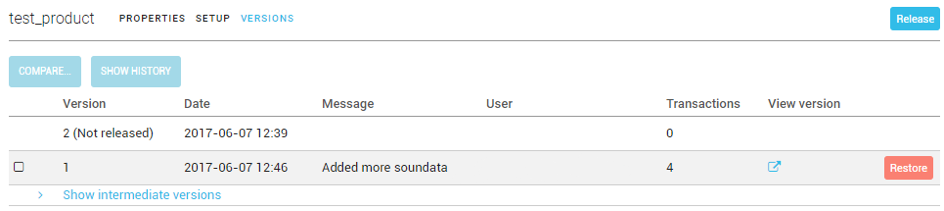
Now the product exists in two released versions (1 and 2) that can never be changed. Any changes after version 2 will be added to version 3, and so on.
Creating A System Release
When there are products that you want an external system to have access to you can create a system release.
Go to the Releases area using the top menu.
 A release in this context is a group of products that you have in Promaster that you want to group together for an external system. In our example we want to include version 2 of the test_product that was just created.
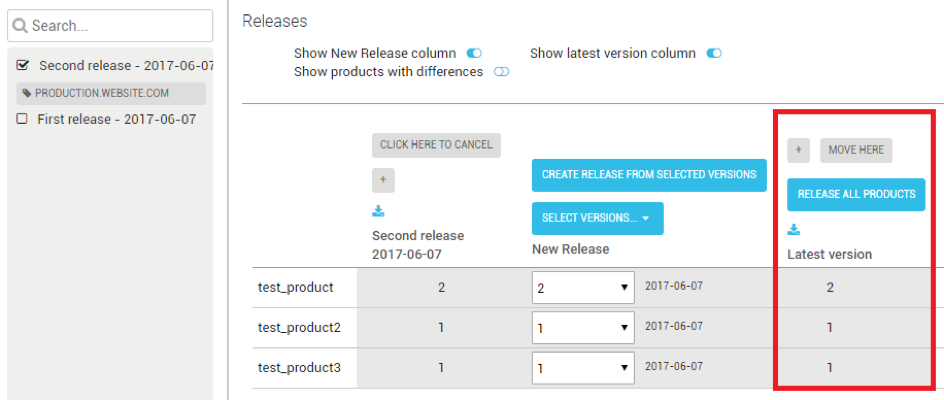
The release page contains all existing releases (left side) and the current selection (right side)
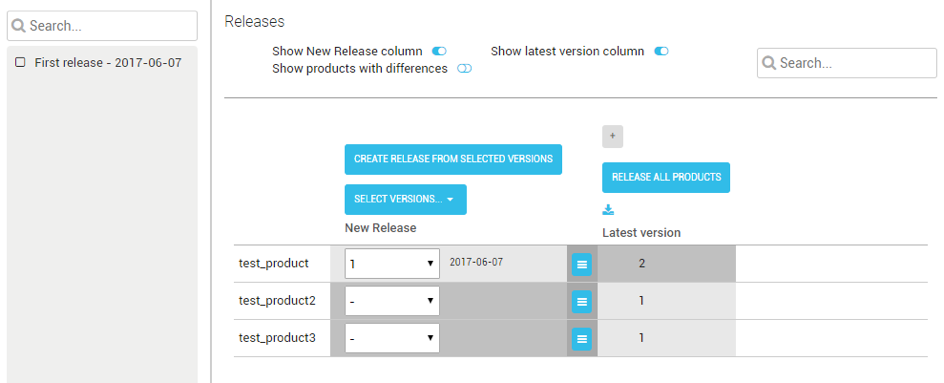
In the column new Release, select the release versions of the products you want to include, a “- “ means that the product won’t be included in the new release.
Since we have version 2 of the test_product, we will select 2 for the test_product and version 1 for the existing products since they haven’t been changed.
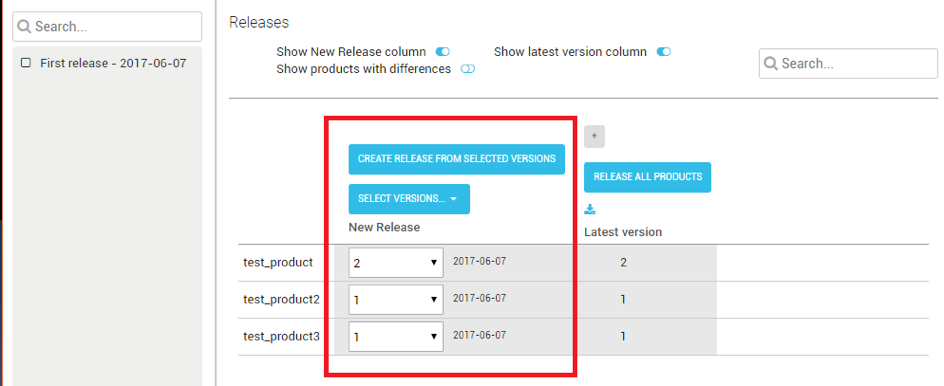
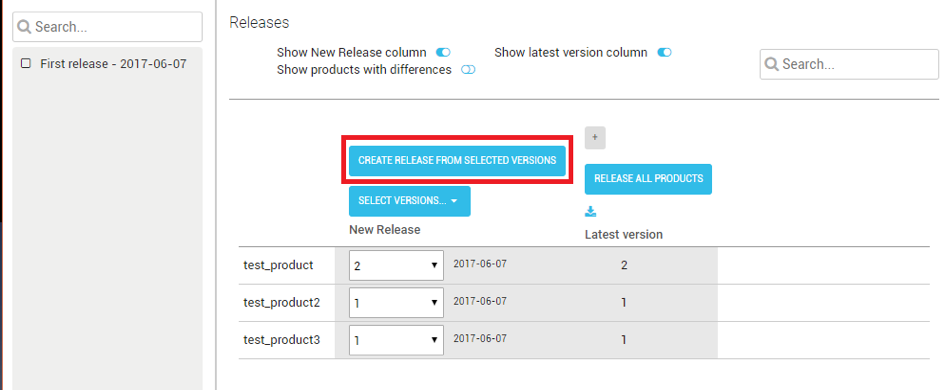
Press Create releases from selected versions
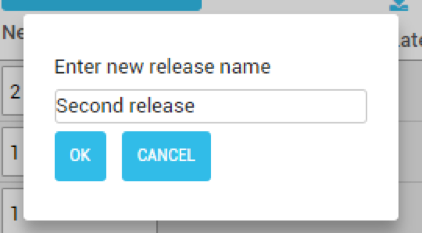
Enter a name for your release, the name will displayed on the left side with the other releases. Click ok
A new release is created and you can see it to the left
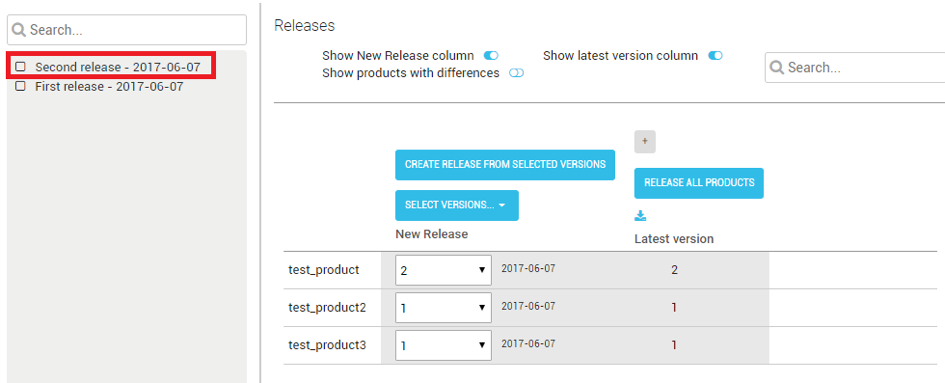 The new release can never be changed. To include a new version of a product you have to edit the product, release it and then go to releases and create a new release with the new version of the product.
Overview System Release
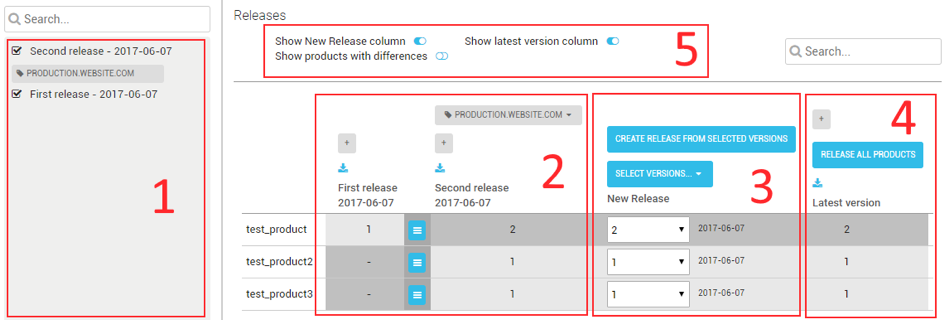
- Displays all releases that exist in the system. Check the checkbox to display the release in 2
- Displays the selected releases in 1.
- New release column. It is used to select what product release versions should be included when creating a new system release. Clicking the button “Create release from selected versions” will create a new release with the selected product release versions.
- Displays the latest version of products in Promaster. This allows you to compare the latest product versions to the selected versions for a new release.
- Allows you to show/hide 3 and 4. Show products with differences will allow you only display products that have different versions between releases.
Markers
Markers are tags or labels for releases. They are used to tell external applications what release they should use and allows the user to publish updates to external systems without having to change the actual systems. It is also a way to run different releases for different systems.
Creating Markers
To create a marker, click the plus icon above any release:
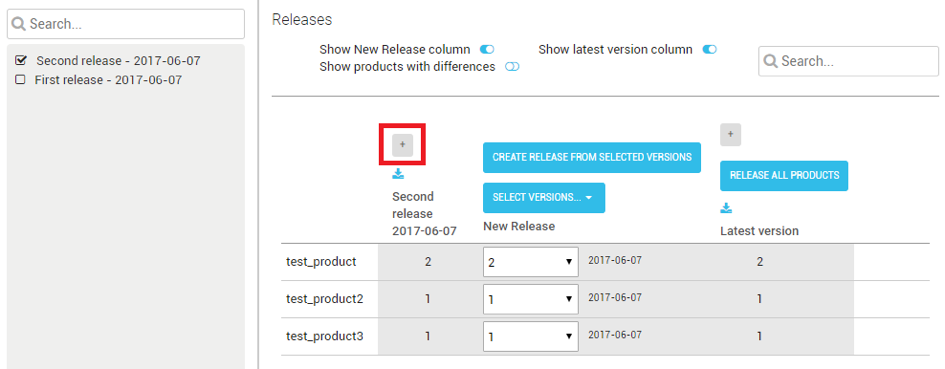
Enter a name, often the name of the system that is going to use the marker and press ok
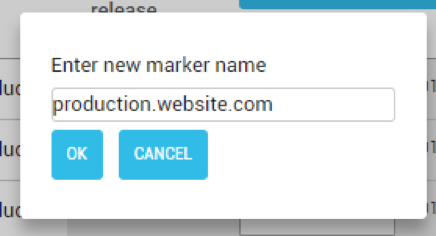
The marker will appear above the release you clicked the plus icon on
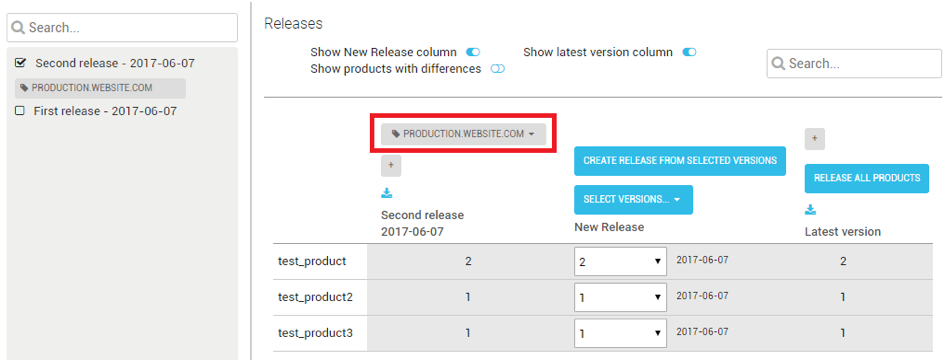 Any external system calling for the release with marker production.website.com will get the three products included in the release in the following versions:
test_product will be in version 2
test_product2 and test_product3 will be in version 1.
Moving Markers
When an external application is up and running and all markers are defined. The calling application will know what marker it should use to get data. When you create a new release and want the external application to use the new release you can move an existing marker.
On the marker you want to move, click the arrow on the right side and in the menu that appears press move
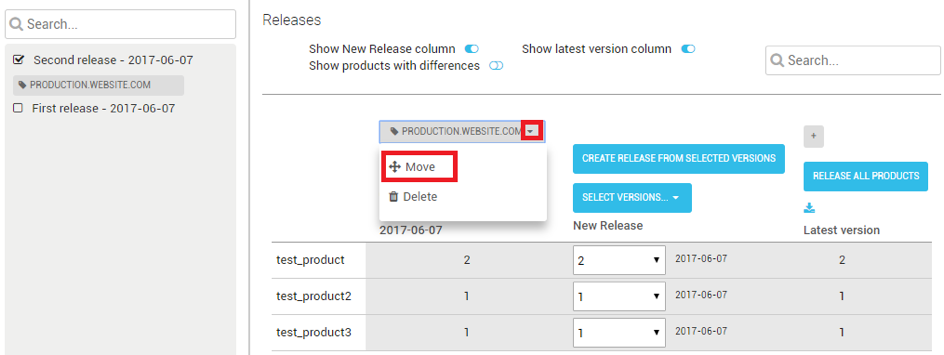
You can now select the release you want to move the marker to. Don’t forget to click the checkboxes next the releases you want to move the marker between so that you can see them
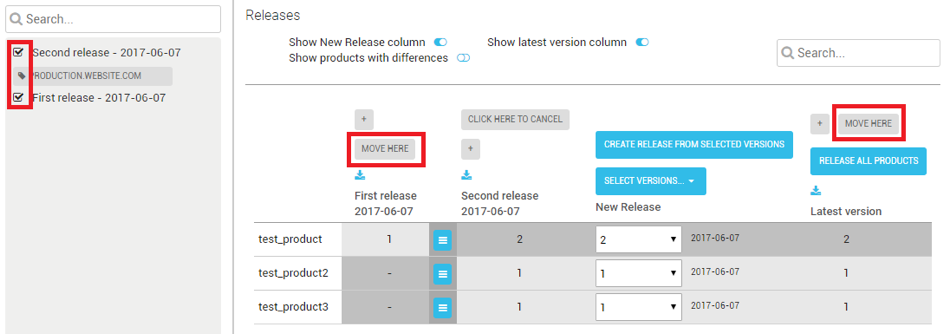
Click move here above the release you want to move the marker to. The external application will now get that release when asking for that particular marker.
With the marker mechanism a user can safely edit data on different products without the risk of breaking an external application. Since the application uses a marker that points to a system release that can’t be changed, and the release points to released products that can’t be changed it is safe to work in Promaster without the risk of breaking something.
NOTE: One release can have multiple markers attached to it. It is also possible to have multiple markers, for example production.website.com and test.website.com on the same or on different releases.
It is possible to add a marker on the column latest version. That means that the system calling that marker will always get the latest versions of all products without a release. This only recommended for testing purposes since a change to any product will instantly be available for the calling system.